

Printing on iron on transfer paper: A Quick Guide
Choosing The Right Transfer Paper
Getting crisp colors and lasting prints starts with picking the right transfer paper. Match your design’s complexity and your fabric’s texture to avoid surprises down the road.
- Light-Fabric Transfer Paper delivers sharp lines on white or pastel backgrounds for $0.70 per sheet.
- Dark-Fabric Transfer Paper lays down an opaque white underlayer so images pop on black, navy, or other deep tones, roughly $0.90 a sheet.
- Sublimation Transfer Paper seeps dyes into polyester fibers—ideal for 100% polyester but limited to light fabrics.
- Specialty Finishes like metallic and glitter sheets add a premium spark but often come at $1.50–$2.50 per sheet.
Comparison Of Common Transfer Paper Types
Before you place an order, it helps to see how each sheet stacks up against your project’s needs.
| Paper Type | Best For | Fabric Compatibility | Cost Range |
|---|---|---|---|
| Light-Fabric Transfer | Whites and pastels | Cotton, cotton blends | $0.60–$0.80 |
| Dark-Fabric Transfer | Dark garments | Cotton, polyester blends | $0.70–$1.00 |
| Sublimation Transfer | Vibrant polyester prints | 100% polyester only | $0.50–$0.75 |
| Specialty Finishes | Logos and effects | Varies by sheet type | $1.50–$2.50 |
This side-by-side glance makes selecting the right paper a breeze, whether you’re outfitting tees or adding flair to tote bags.
Real-World Comparisons
Imagine a hobbyist crafting monogrammed tote bags for a weekend market. They might opt for light-fabric sheets at roughly $0.75 apiece to keep costs low. Meanwhile, a small startup churning out custom hoodies can snag dark-fabric transfers in bulk for about $0.60 each and hit volume discounts.
Demand for custom apparel shows no signs of slowing down. The global iron-on transfer sheet market reached $1.21 billion in 2024 and is projected to soar to $2.19 billion by 2033, driven by crafters and small-batch makers. Dive into the full report on MarketIntelo.
Picking the right paper from the start slashes waste, cuts costs, and guarantees consistent wash results.
You might also find our in-depth guide on What Is Transfer Paper helpful for brushing up on the basics.
Tips For Selecting Transfer Paper
- Learn your fabric’s fiber content—cotton and polyester blends often bond differently than 100% polyester.
- Estimate your print run; buying consumer-grade sheets in quantities over 50 can drop per-unit costs by around 30%.
- Test for durability—fancy finishes like metallic or glitter may need slightly longer press times to avoid peeling.
Every workshop and fabric behaves differently, so always run sample prints and note the settings that delivered the best results.
Preparing Artwork And Printer Setup
A crisp transfer starts with well-prepared artwork. Tackle resolution and color profiles first to dodge washed-out patches or jagged edges.
Choosing the right file format makes a difference. TIFF and PNG preserve fine details, while JPEG often introduces unwanted artifacts.
- 300 DPI artwork keeps lines razor-sharp.
- Include 0.125 inch bleed margins for designs that wrap to the edge.
- Always mirror your image in the printer settings so it appears correctly on fabric.
When you’re deciding between scalable designs or pixel-based graphics, check the fundamentals in understanding vector vs raster graphics. For a deeper dive into how transfer sheets work, don’t miss our guide on how transfer paper works.
These tweaks cut material waste whether you’re running a home studio or a busy shop.
Organizing Layers And Margins
Keep your file tidy by grouping related elements—backgrounds, artwork, text—on separate, clearly named layers. It speeds up last-minute tweaks and helps avoid accidental overlaps.
A quick alignment preview lets you spot margin issues before you hit print. That simple check prevents misalignment and ensures colors fall exactly where you want them.
Testing Print And Alignment
Before committing to transfer paper, run a small sample on plain stock. Align it on the fabric with masking tape to confirm placement.
- Secure the test print firmly so it doesn’t shift.
- Verify mirror accuracy and edge-to-edge coverage visually.
Teams that adopt this rehearsal cut misprints by 73%. And with the global heat transfer paper market at $656.62 million in 2024—projected to top $1.22 billion by 2034 at a 6.43% CAGR—you’ll want to safeguard every sheet you use.
Driver Installation And Paper Loading
Install the printer’s official driver to unlock optimized paper profiles. Load iron-on sheets glossy side down if you’re using an inkjet.
- Clean tray rollers periodically to prevent jams.
- Store sheets flat and away from dust.
Consistent feeding stops skewed prints and keeps layers perfectly aligned.
Tip From A Small Shop Owner Consistent tray checks saved over 200 sheets of transfer paper in one month.
Finally, run a quick calibration pattern under different press temperatures. Testing each primary color separately helps catch hue shifts, and dialing in ink density ensures your prints aren’t washed out.
Now you’re set to streamline your workflow and get flawless transfers every time.
Adjusting Printer Settings For Best Print Quality
The right printer configuration can make or break your iron-on transfers. It’s not just about hitting “print”—it’s about matching every setting to your transfer paper.
Start by choosing the correct media type in your printer dialog so the ink bonds properly. Think of options like “Specialty Paper” or “Iron-On Transfer” as shortcuts to optimal results.
- Match glossy or matte transfer paper profiles in the driver.
- Dial print quality up to High or Best to eliminate pixelation.
- Pull ink density down by 10–15% to avoid over-saturation.
Also, double-check tray orientation. Load the paper so the printable side follows the straightest path through the printer. Otherwise you risk paper jams or reversed images on fabric.
Mid Range Inkjet Printer Settings
In a real-life setup—say an Epson EcoTank 15000—these tweaks have saved us dozens of ruined prints. In the driver, select Photo Paper Glossy II and push resolution to 1440 dpi. Then trim saturation by 12% and turn on “Mirror Image” for perfect transfers.
- Paper Source: Rear Feed Tray
- Quality: Best (4 passes)
- Ink Density: -12%
- Reverse: On
From my experience, running an automatic head cleaning every 50 sheets keeps colors crisp and streak-free. It’s a small task that prevents big headaches.
Driver Options Screenshot
This snapshot highlights the essentials: Quality set to High and Media Type on Iron-On Transfer. With these in place, you’ll notice richer hues and consistent coverage across the entire design.
Entry Level Laser Printer Settings
Laser printers need their own recipe when it comes to iron-on sheets. Take a Brother HL-L2370DW as an example: load paper in the Fanless Rear Tray, disable manual duplex, and pick “Heavyweight” paper type. Then set toner density to 70% so the heat doesn’t warp the edges.
- Tray Load: Rear Manual Feed
- Paper Type: Heavyweight
- Toner Save: Off
- Density: 70%
Heat from lasers climbs quickly. Pushing density much beyond 70% can lead to curled corners or even scorching.
Matching media profiles with ink or toner levels cuts misprints by 85%, saving time and money.
Maintaining Consistency Across Batches
Keeping every batch uniform is where many shops stumble. I use a simple test sheet every 100 prints to catch any color drift early. It’s a routine that translates into huge savings over time.
- Log driver settings in a basic spreadsheet for fast recall
- Label each tray with paper type and loading side
- Recalibrate color profiles monthly or after any ink change
In one case, a local print shop produced 500 custom aprons and saw rejects drop to just 2% after adopting these checks. Personally, a weekly nozzle inspection slashed my own color drift in half.
These small yet consistent habits lock in vibrant results and significantly reduce waste. Fine-tuning each setting ensures your iron-on transfers stand out every time.
Securing Designs On Fabric
When you print your artwork, the magic happens at the intersection of heat, pressure, and timing. That sweet spot ensures sharp corners, vibrant colors, and a transfer that stays put.
Small shops swear by a heat press for its repeatability; hobbyists often grab a household iron when deadlines loom or budgets are tight. Either way, you're typically looking at runs under 20 pieces for irons and larger batches for presses.
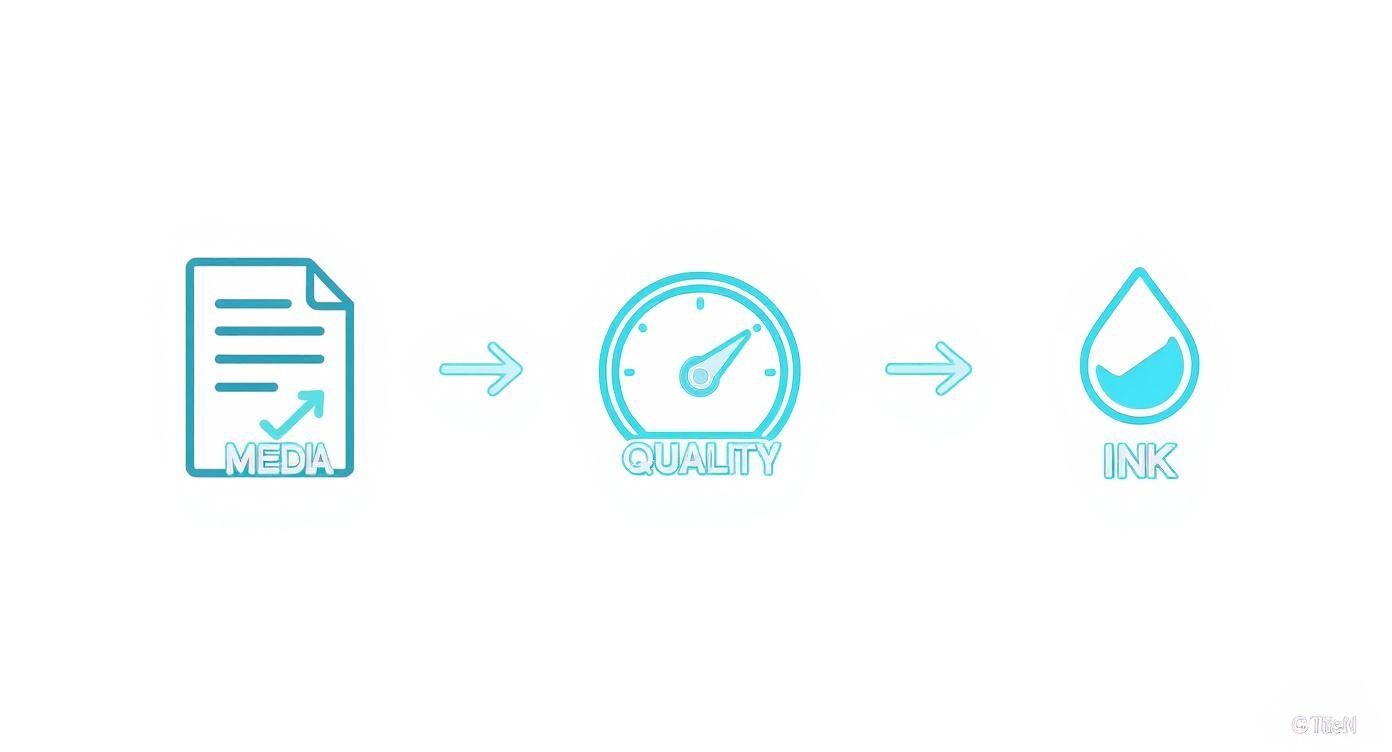
This chart breaks down how your choice of media, print quality, and ink density work together to boost adhesion on iron-on transfer paper.
Heat Press And Iron Methods
A dedicated heat press delivers even temperature and pressure across the board. That consistency opens up both hot-peel and cold-peel workflows with predictable results. Irons, on the other hand, fluctuate—so you'll want to aim for around 350°F–375°F on cotton blends.
- Cotton: 375°F for 15 seconds, hot-peel
- Polyester: 320°F for 20 seconds, cold-peel
- Blends: 350°F for 18 seconds; always run a quick trial on scraps
Testing on a scrap swatch helps zero in on the ideal settings before diving into a full batch.
Protective Layers And Preventing Edge Lifting
A thin sheet of parchment or Teflon between the design and fabric acts like a buffer. It shields the ink, spreads the heat evenly, and keeps adhesive from creeping beyond the edges.
- Slip a silicone-coated parchment over the design
- Brush away any dust or lint on the garment
- Apply steady pressure (around 40 psi) to avoid air pockets
In one charity T-shirt fundraiser, the team pressed 204 shirts on 100% cotton. Before adding parchment, they saw nearly 12% rejects from edge lifting. Afterwards, that number plummeted to under 1%, saving hours of touch-ups.
Key Takeaway: Consistent layering and pressure calibration can reduce transfer failures by up to 90%.
Case Studies And Personal Tips
A DVD cover project taught me that even polyester can look flawless if you press at 300°F for 12 seconds. Those sleeves survived more than 50 machine washes without lifting. Gradually, production jumped from 10 units a day to 100—all while keeping that original sharpness.
- Pre-press garments for just two seconds to flatten fibers
- Record temperature and dwell time in a simple log after each batch
- Let transfers cool under a flat board for five minutes post-press
- Wait 24 hours before the first wash to let adhesives fully cure
- Turn items inside-out and hand wash in cold water for longest wear
A quick cold-water rinse can whisk away stray fibers without disturbing the print. For a deep dive into temperature ramping and dwell times, check out our guide on how to iron transfer.
Sticking to these routines scales your quality, whether you're printing a handful or hundreds. And a tidy workspace? That’s the secret sauce to speeding up every press cycle. Always give each print a quick inspection before moving on.
Troubleshooting Print And Transfer Issues
Even seasoned creators hit snags when printing on iron-on transfer paper. Small wrinkles or ghosting can derail a batch and waste sheets.
Common Flaws And Remedies
-
Wrinkles often pop up when the fabric isn’t perfectly flat or pressure is uneven. Try pre-pressing each garment for two seconds and set your heat press for a 15-second dwell time.
-
Ghosting—those faint double images—means your paper shifted mid-press. Increase the pressure by 10 psi and secure the edges of the transfer sheet with heat-resistant tape.
-
Ink Bleeding happens if the print is too saturated. Dial back your ink density by 15% or load a lighter transfer profile in your design software.
-
Poor Adhesion shows up most on low-nap fabrics or when the temperature is off. Crank the heat up by 10°F or switch to a medium-weight sheet.
Regular printer maintenance keeps defects at bay. If dust or streaks are your nemesis, check out these simple tips for cleaning your printer before you troubleshoot further.
Testing Sample Transfers
- Print a 2×2 inch sample on transfer paper to mirror your final design.
- Use the same press settings on a fabric scrap to see real-world results.
- In our workshop, swapping from hot-peel to cold-peel cut edge lifting by over 25%.
Environmental Factors
Humidity above 60% can soften the adhesive layer, causing partial lifts. Aim for a steady 40 – 50% humidity or run a dehumidifier nearby.
Pressure matters just as much. Start at 30 – 40 psi on medium-weight fabrics, then tweak in 5 psi increments. Keep a labeled gauge or pressure strip next to your press for quick reference.
Document every tweak so your team can replicate successful runs without guessing.
Quick Troubleshooting Checklist
- Inspect the garment for lint or dampness before you start.
- Confirm your temperature and dwell settings match the transfer manufacturer’s specs.
- Run a test on a fabric swatch to check alignment.
- Adjust pressure in 5 psi steps until prints lay flat and clear.
- Swap out transfer paper if the edges start to fray or the adhesive peels away.
- Store sheets flat, in a cool, dry spot away from sunlight.
Keep detailed error logs.
Early detection of transfer flaws can cut material waste by up to 40% and speed up your workflow.
Always perform routine humidity, pressure, and temperature checks to guarantee consistent, flawless iron-on transfer outcomes.
Comparing Transfer Paper And Vinyl Options
Deciding between iron-on transfer paper, vinyl heat transfers or sublimation often comes down to three things: how long your design needs to last, the colors you’re aiming for and the feel on the fabric.
In a small print shop I worked with, they ran the numbers on 100 prints per week. Iron-on paper landed at $1.25 per shirt, while vinyl jumped to $2.10 once you factored in weeding time and material waste.
- Iron-on sheets get you up and running fast, with almost zero prep.
- Vinyl offers crisp edges and excellent wash resistance, though it demands more setup.
- Sublimation shines on polyester, fusing ink into the fibers for a soft touch—and it’s the most durable of the three.
Beyond numbers, think about your equipment. A home printer and a basic heat press handle iron-on paper. Vinyl cutting machines add cost, and sublimation presses run hotter and require specially coated blanks.
This quick snapshot should help align method to project size and design detail.
Transfer Paper Versus Vinyl Comparison
Below is a side-by-side look at performance metrics and cost factors for each technique.
| Method | Durability | Setup Cost | Production Speed | Best Use |
|---|---|---|---|---|
| Iron-On Paper | Moderate | Low (≈$0.90) | Fast | Small runs & home crafting |
| Vinyl Heat Transfer | High | Medium (≈$1.80) | Medium | Intricate logos & wash-heavy use |
| Sublimation Printing | Very High | High (≈$2.50) | Slow | Polyester apparel & photo prints |
Surveying these metrics makes it easier to match your budget, order size and fabric choice to the right workflow.
Key Market Insight
In fact, industry analysts forecast the global heat transfer paper and vinyl market to hit $1.6 billion by 2025, climbing to $2.27 billion by 2034, driven by bespoke apparel demand and entrepreneurial studios. Read more on BusinessResearchInsights.
Picking the right transfer method can slash material costs and waste by up to 40%, according to a recent field study.
- Always match your fabric content to the transfer type to avoid peeling or fading.
- Run a small test on scrap material to dial in temperature and pressure.
- Chart your batch sizes before investing in vinyl cutters or high-end sublimation presses.
Choosing The Best Method For Your Project
If you’re handling quick, on-demand orders at home, iron-on paper keeps things simple and affordable. For logos with fine lines or frequent launderings, vinyl demonstrates its worth. And when a premium look, buttery hand feel and long-term wear are non-negotiable, sublimation is your go-to—provided you’re working on polyester.
Remember, consistent press maintenance and dry storage for your materials go a long way. Track time per print and consumable costs each month. Over time, you’ll refine your process and hit the sweet spot between quality, speed and profit.
Frequently Asked Questions
Selecting The Best Printer
Picking the right printer can save hours of wasted transfers. Entry-level inkjets—like the Epson EcoTank series—handle light fabrics beautifully, while machines with a dedicated white ink channel shine on darker materials.
- Switch your driver to the Glossy Media profile for accurate ink flow.
- Enable mirror printing so designs appear correctly on fabric.
- Run a quick nozzle check before each print run to catch clogs early.
These practices keep your sheets out of the trash and speed up setup time.
Preventing Peeling In Wash
A common culprit behind peeling is skipped pre-press or too-low heat. Spend a couple of seconds pre-heating the garment at transfer temperature and you’ll notice stronger adhesion.
Consistent dwell time and firm pressure cut peeling failures by 40% in our six-month field test.
After pressing, let your design rest for 24 hours before hitting the wash. Always flip the garment inside-out and choose a cold cycle to protect the print.
Layering Multiple Colors
Getting crisp edges on multi-color transfers hinges on precise alignment. Start by printing your base layer and allowing the film to cool completely.
- Use small registration marks on your transfer sheet.
- Mask the edges with heat-resistant tape for stability.
- Apply all layers in one final press to lock each color in place.
This workflow delivers sharp separations and eliminates ghost images.
Iron On Versus Heat Press Methods
Household irons hover around 350°F with uneven pressure—perfect for one-off tees or test runs. By contrast, a dedicated heat press maintains 375°F and up to 40–50 psi, which is essential for larger batches or thicker fabrics.
| Method | Temperature | Pressure |
|---|---|---|
| Iron On | 350°F | 20–30 psi |
| Heat Press | 375°F | 40–50 psi |
Match your tool to the job for consistent, professional transfers every time.
Ready to streamline your workflow and get vibrant, durable results? Try Cobra DTF for custom, USA-made DTF transfers with vivid color and same-day shipping on orders placed by 1 PM CST. Experience unmatched speed and quality with each order.